Web console
concise-web is a local web console for Concise. The console does these tasks:
- It shows the settings that apply to a project.
- It changes the configuration files.
- It runs pasted text through the real hooks.
- It shows each hook call live, when the call occurs.
- It manages pattern packs.
The console is optional. The hooks work without it. The console runs only when you start it. By default, it accepts connections only from 127.0.0.1.
Install and start
The console is in the @yannelli/be-concise npm package. It needs Node.js 24 or later.
To install and start the console, run these commands:
npm install -g @yannelli/be-concise
concise-web --cwd /path/to/project
If you do not use --cwd, the console serves the current directory. The console starts a server on a port that is not in use. Then it prints the address and opens your browser:
Concise console: http://127.0.0.1:43117/#token=6f1c…
Press Ctrl+C to stop.
The #token= part is the access token for this run. The console moves the token into the browser session and removes it from the address bar. To stop the server, push Ctrl+C.
If you use a checkout of the repository, run node bin/concise-web.mjs or npm run web in place of concise-web.
Options
| Option | Result |
|---|---|
--cwd PATH | Serve the project at PATH. The default is the current directory. |
--all | Serve every project that the hooks registered. Refer to Watch every project. You cannot use it with --cwd. |
--port PORT | Use this port. The default is a port that is not in use. The system selects it. |
--no-open | Print the address and do not open a browser. |
--remote | Also accept the IPv4 addresses and the Tailscale hostnames of this computer. Refer to Security. |
update | Update the npm package and the plugin. Refer to Update. |
update --check | Show the changes that update will make, but do not make them. |
Watch every project
concise-web --allEach hook call registers its project in ~/.config/concise/projects/. With --all, the console reads that list and shows a project switcher in the sidebar. The switcher puts projects into groups by git repository. It also puts a label on each worktree. If the folder of a project does not exist, the console hides that project until you select Show N missing.
While the hub runs, each hook call also adds its record to the end of ~/.local/state/concise/projects/<hash>/records.jsonl. The hub reads the new records from that file for every project. To see the calls that occurred before the hub started, keep the record file on at all times:
{
  "monitor": { "persist": true }
}
BEC_MONITOR_PERSIST=1 does the same for one session. If you do not use --all, the console shows only the calls that arrive after it starts.
Pages
Overview
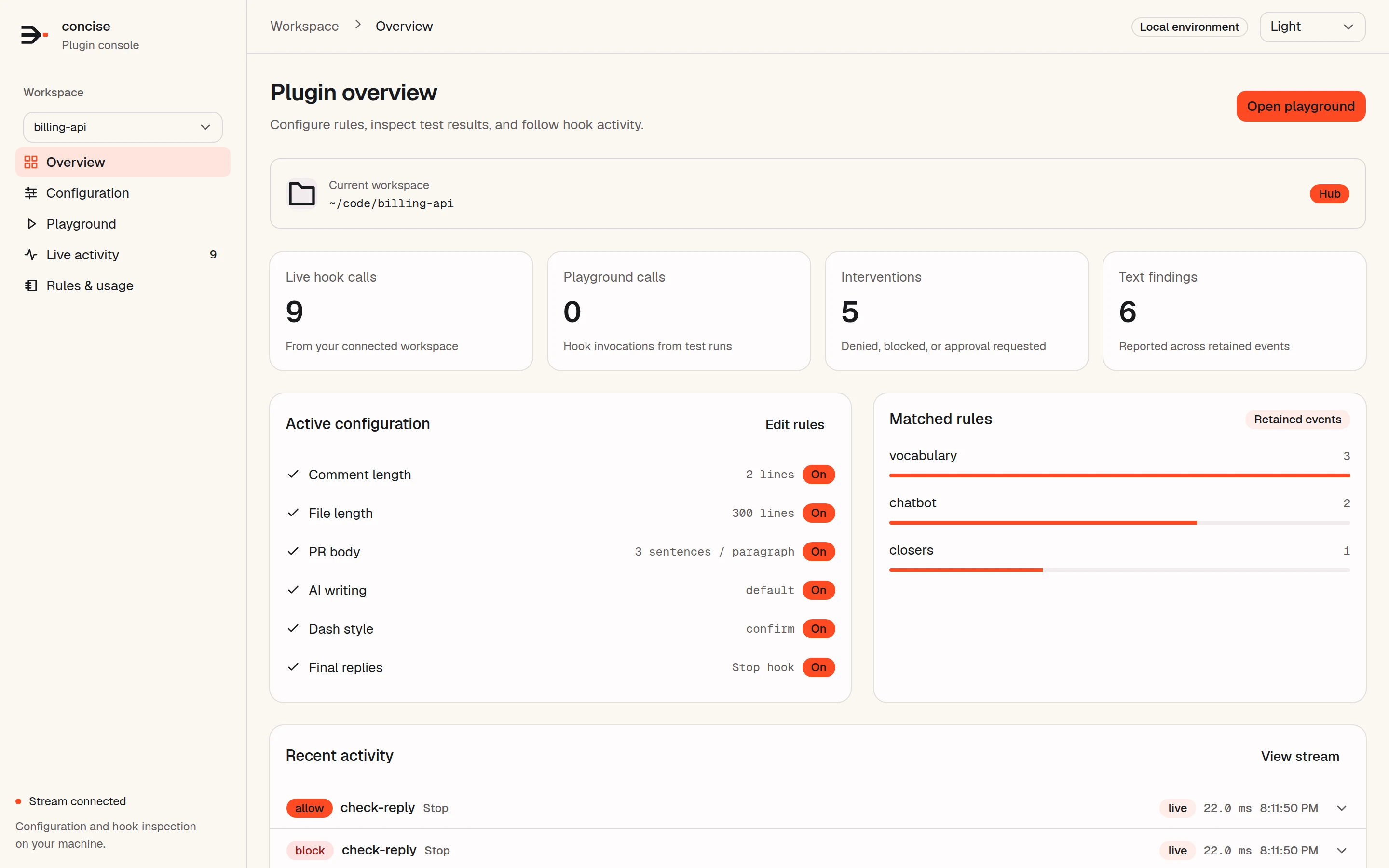
The first page shows the project path and a Hub or Local badge. It also shows 4 counts:
- Live hook calls
- Playground calls
- Interventions. An intervention is a denial, a block, or an approval request.
- Text findings
Below the counts, the page shows the active limits, the 6 rules that matched most often, and the 4 most recent hook calls.
Configuration
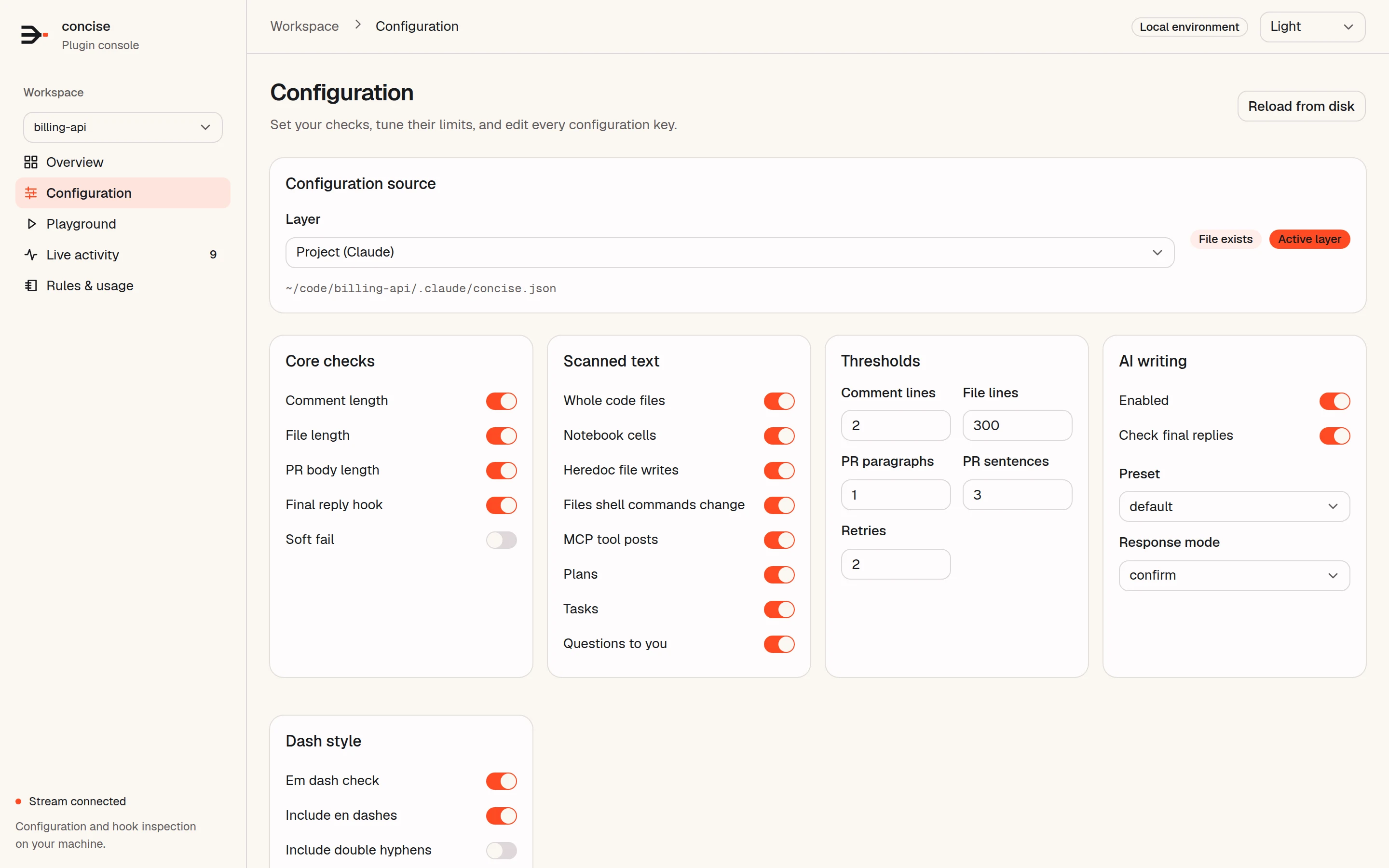
To change a configuration layer, do these steps:
- Select a layer. You can select the
BEC_CONFIG_PATHfile, a user file, or a project file for Claude Code or Codex. The test filter files~/.claude/test-filter.confand~/.codex/test-filter.confare also in the list. - Change a switch, a number, or the raw JSON.
- Select Save configuration.
If the file changed on disk after you opened it, the console does not save the file and shows a message. To read the file again, select Reload from disk.
The reference section shows these items:
- The effective settings
- The built-in defaults
- The
BEC_environment overrides that apply. The section does not show variables withTOKENin the name. - The registered hooks
- Problems with the files, if there are problems
For a description of the keys, refer to Configuration.
Playground
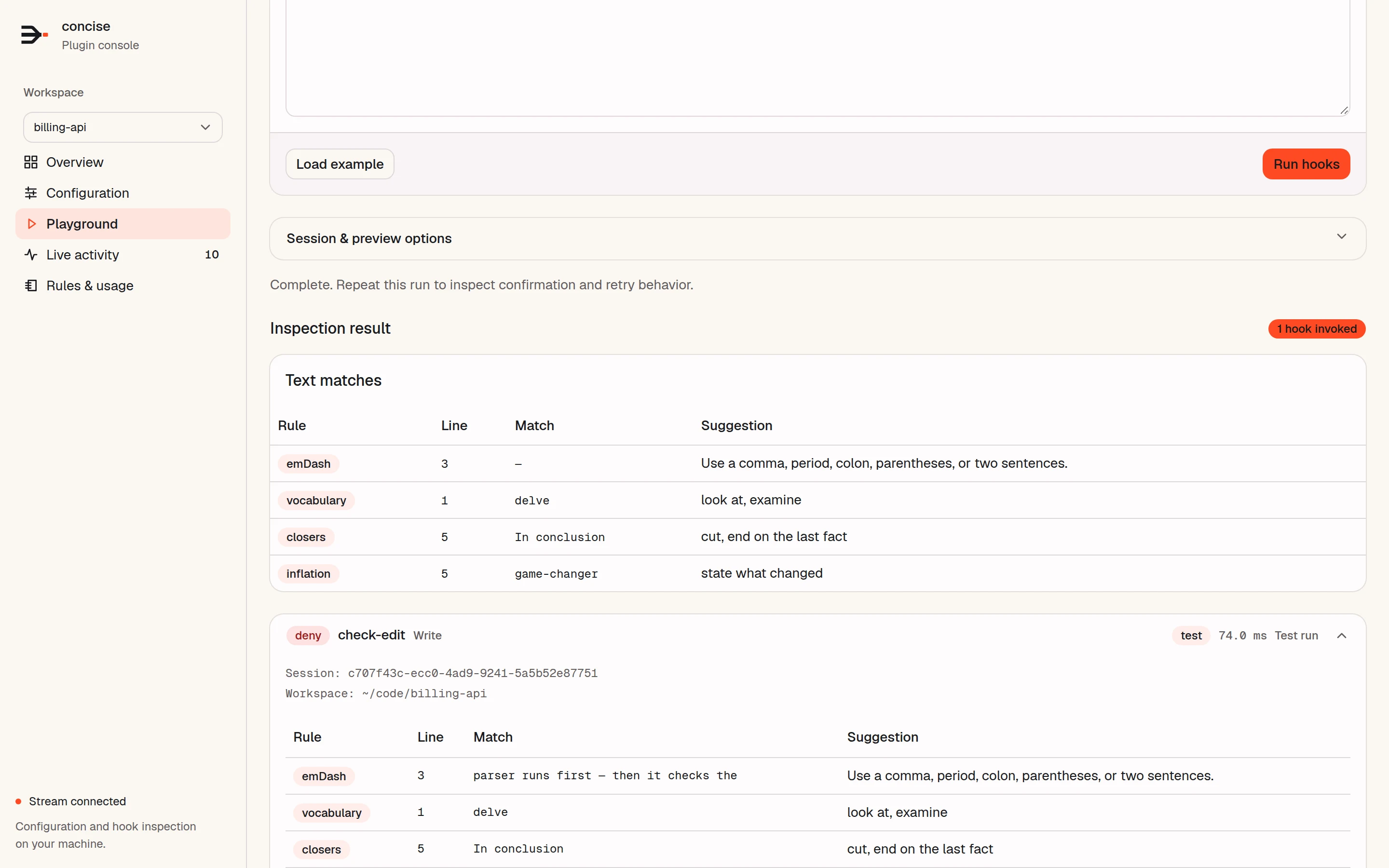
To run text through the hooks, do these steps:
- Paste text.
- Select a tool or an event:
Write,Edit,MultiEdit,apply_patch,Bash,Stop, or raw JSON. - Select Run hooks.
The playground sends the call through the same hooks that your agent uses. Then it shows each match, each hook decision, its duration, and the full JSON response.
- To see the confirmation and retry behavior, run the same input again. To reset that state, select New session.
- The playground does a check of a Bash command, but it does not run the command.
- Session & preview options applies a configuration change only to the test. No change is saved until you save a layer on the Configuration page.
- The playground keeps a separate retry state. Thus, it does not affect your agent sessions.
Live activity
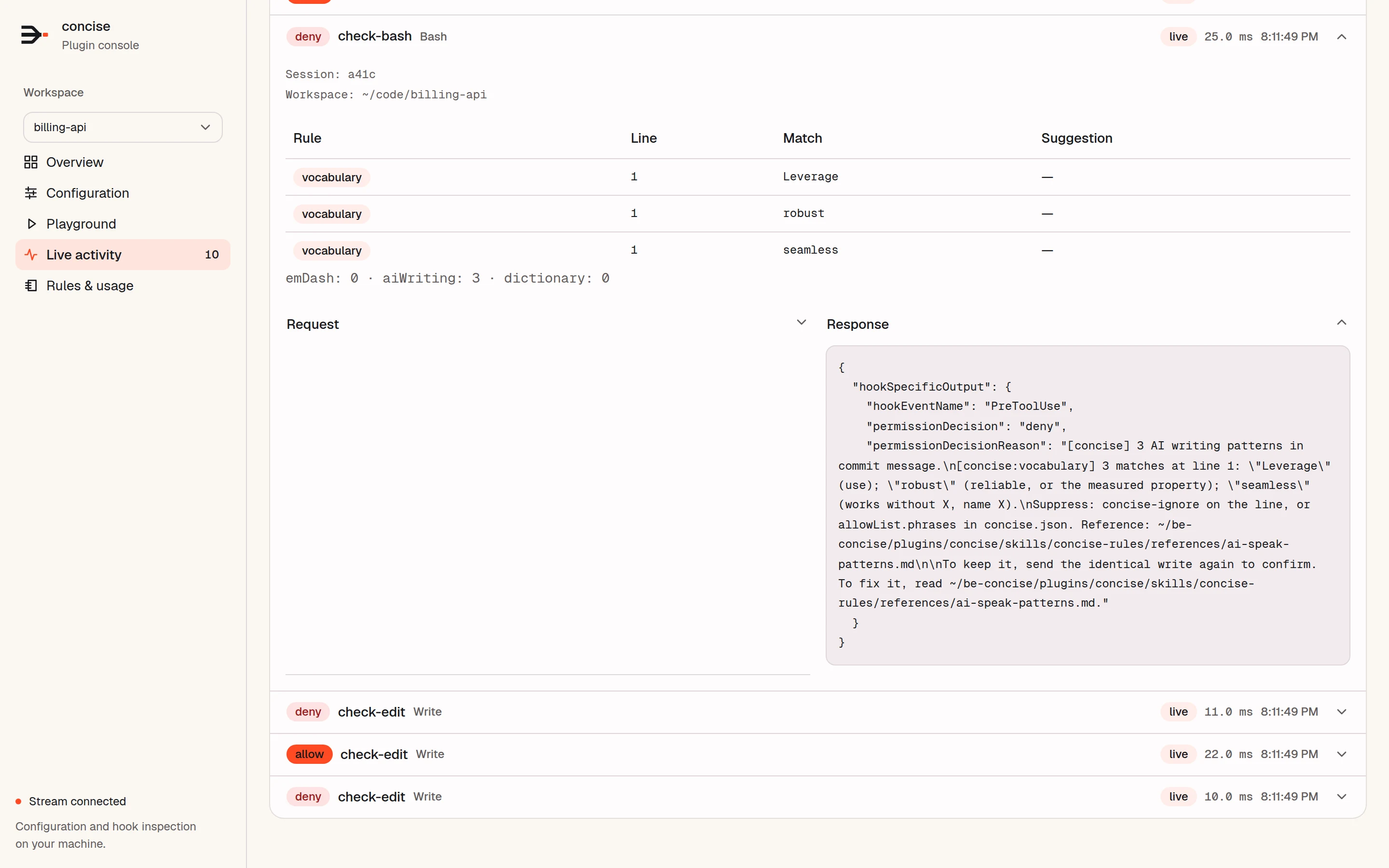
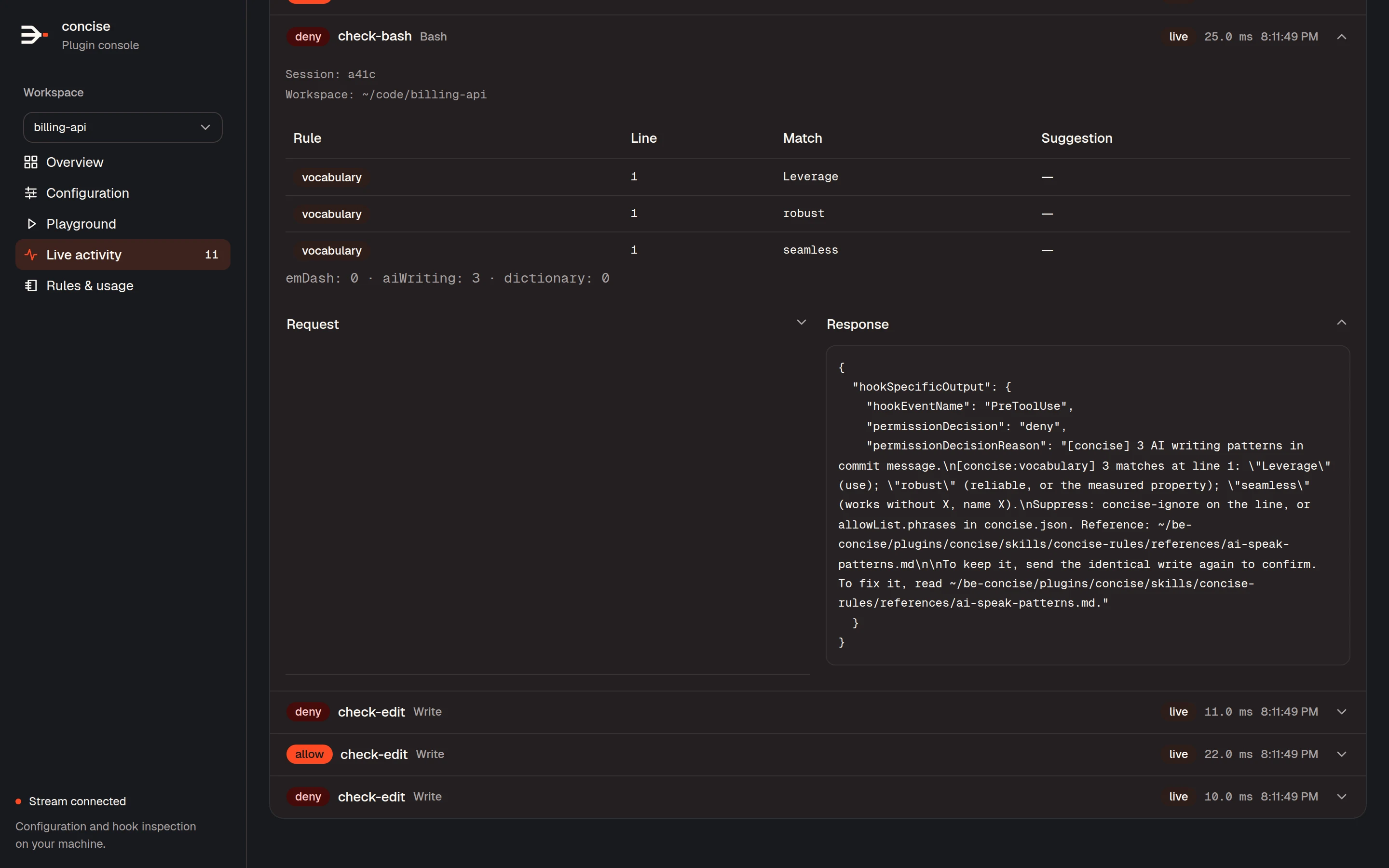
This page shows each hook call from your agent when the call occurs. For each call, it shows the decision, hook, tool, source, and duration. The source is live or playground. To see the details of a call, expand it. You then see the session, the findings, the request that the host sent, and the response that Concise returned.
You can filter the calls by project, source, decision, hook, or session. The project filter is available only in the hub. You can also search the payloads. Export JSON downloads the calls that match the filters. Pause display stops new calls from moving the list. Clear history removes the calls. In the hub, it also empties the record file of the project.
The console keeps a maximum of 500 calls per project, within 16 MiB, in memory. To remove the calls from memory, stop the server.
Rules & usage
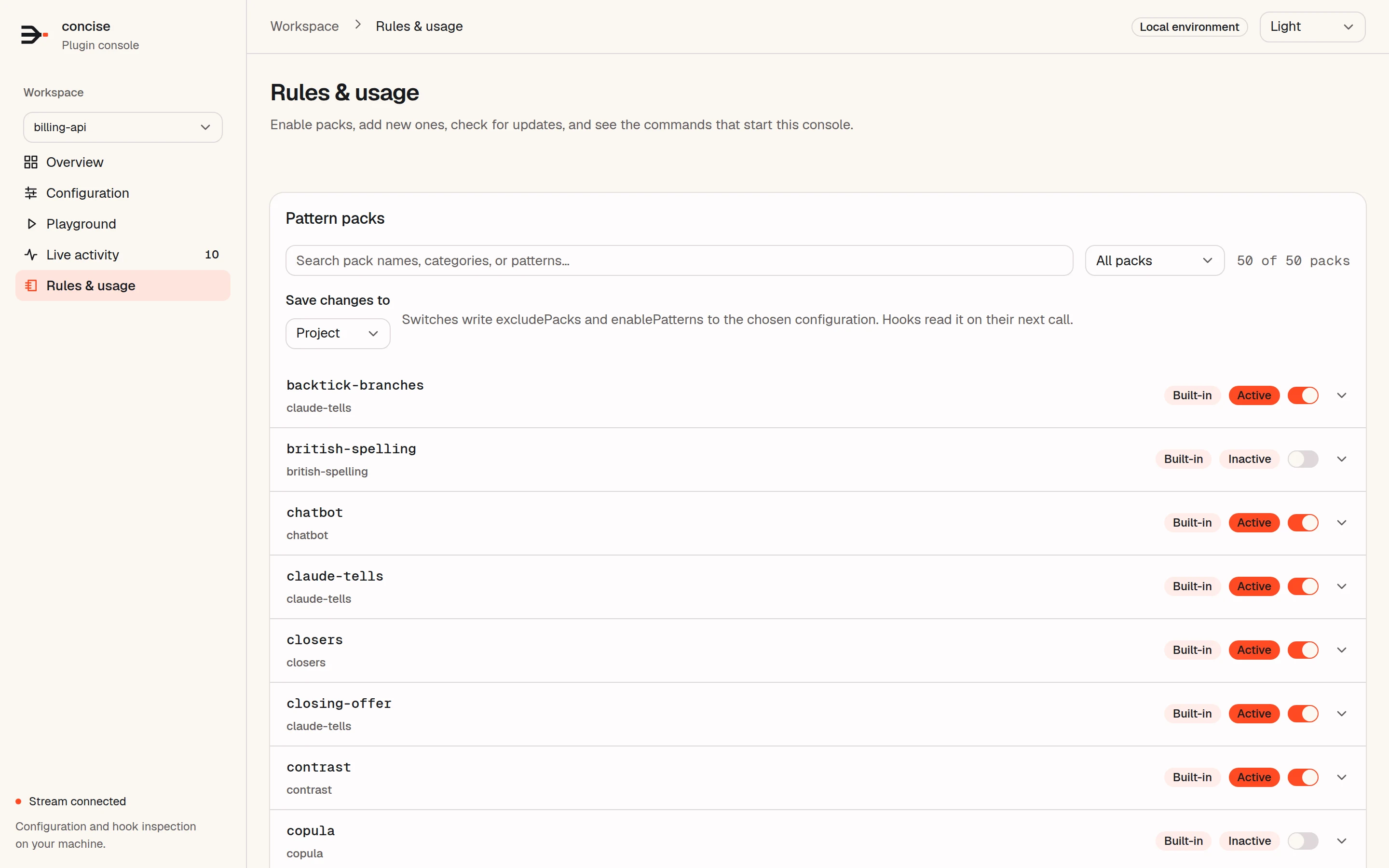
This page shows a list of all loaded pattern packs. Use the switches to turn packs on and off. To write .claude/concise.json in the project, select Project under Save changes to. To write your user file, select User under Save changes to. The hooks read the change at their next call.
You can also add a pack from an https URL, a local path, or pasted JSON. Check for updates gets a new copy of each pack that was installed from a URL. It also compares the plugin version with the latest GitHub release. For a description of the pack files, refer to Pattern packs.
Light and dark themes
Update
concise-web updateThe command does these 3 steps:
- It installs the latest
@yannelli/be-conciserelease from npm. If you use a git checkout, the command does not do this step. In this case, usegit pull. - It updates the
concise@be-conciseplugin in each of Claude Code, Codex, and omp where the plugin is installed. - If a console that runs an older version is the main process of a systemd user service, the command restarts it. For other consoles, the command tells you to stop them and start them again.
To see the changes before you update, run concise-web update --check first.
Data and privacy
The console sends data from your computer only when you tell it to:
- It gets a pack from a URL that you enter.
- Check for updates reads release data from
api.github.com. concise-web updaterunsnpmand theplugincommands of your agent CLIs.
While a console runs, each hook sends its record to the console on 127.0.0.1. The record file contains the full text of each checked call. This text can include secrets. Keep the record file private. BEC_MONITOR_DISABLED=1 stops the project list, the record file, and the console feed.
For the full policy, refer to PRIVACY.md.
Security
- Each API request needs the access token from the start-up address. The console compares the token in constant time.
- The console rejects requests that have an unexpected
HostorOriginheader. - The console sets a strict content security policy.
- Other sites cannot put the console in a frame.
- With
--remote, the console listens on all IPv4 interfaces. It also accepts the IPv4 addresses and the Tailscale hostnames of this computer. - If you use
--remote, share the address only on a network that you trust. A person who has the address with the token can change your configuration.